DISCOVER ALL OUR OFFERS! ⚡· ACTIVISTS AGAINST PLANNED OBSOLESCENCE ·

What is a docking station and why do you need it?

What is a docking station and why do you need it?
Share on social media

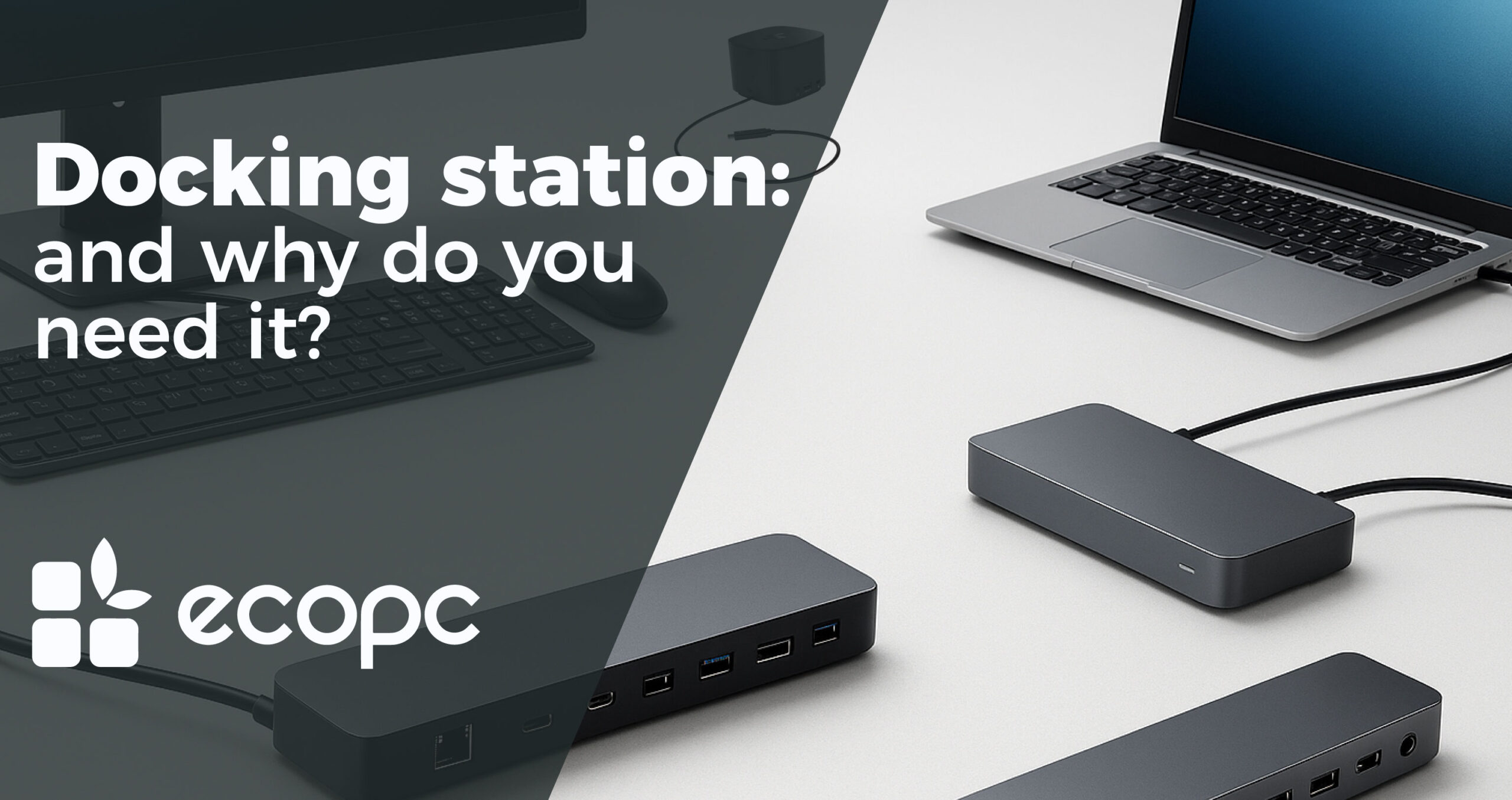
What is a Docking Station and why do you need one?

In today’s world, where efficiency and connectivity are essential, more and more people find themselves needing to connect several electronic devices at once. That’s where an often-overlooked yet essential tool comes into play — the docking station.

But what is a docking station, and why is it a must-have if you want to get the most out of your refurbished laptop?

What is a Docking Station?

Also known as a port replicator, a docking station is a device that allows you to connect your laptop to several different peripherals simultaneously — monitors, keyboards, external hard drives and more.

In other words, a docking station acts as a central hub that makes it easy to use your laptop with multiple accessories, without the hassle of constantly plugging and unplugging cables.

Benefits of adding a Docking Station to your setup

Now that you know what a docking station is, let’s explore why it’s such a useful addition — especially if you own a refurbished laptop and want to unlock its full potential:

  • More connectivity: The more ports you have, the fewer limitations you’ll face. Plus, it’s incredibly easy to use — just plug your docking station into your laptop with a single cable and instantly access all your connected devices.
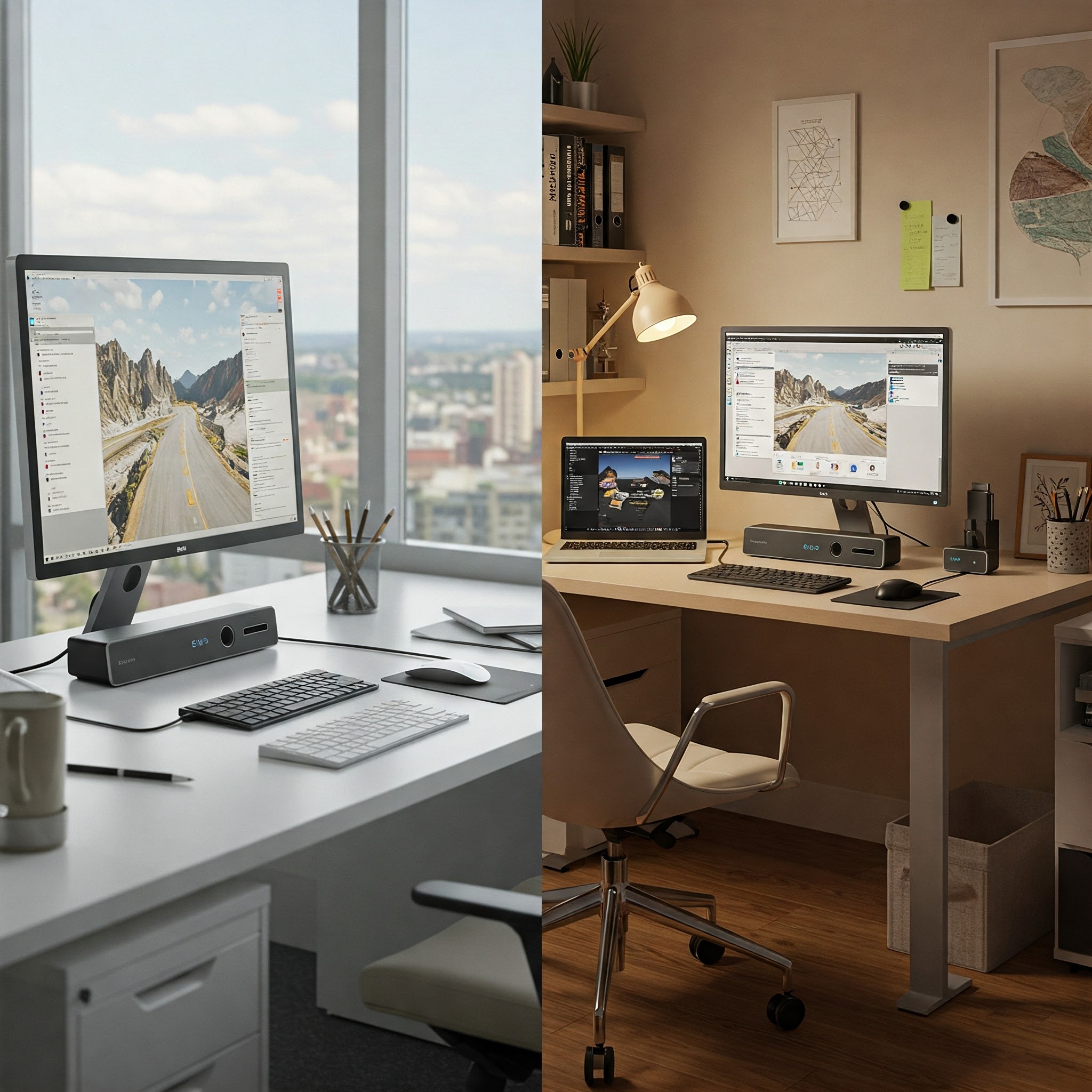
  • Tidier and more comfortable workspace: A docking station helps keep everything in one place and eliminates cable clutter, making your desk more organised and efficient.
  • Boosted productivity: Connecting multiple monitors at once greatly enhances your workflow — no more juggling endless open windows. Keep them all visible and neatly arranged at the same time.
  • Portability preserved: One of the main perks of a laptop is its portability — and a docking station won’t change that. Just unplug the single cable when you’re on the move and reconnect it at your new location to pick up right where you left off.
  • Charge while you work: Modern docking stations don’t just transfer data — many can now charge your laptop at the same time. A huge plus if you work for extended hours without interruptions.
  • The perfect upgrade for refurbished laptops: Buying a refurbished laptop gives you great value for money, and a docking station is the perfect investment to take it to the next level.

Docking Stations: your best ally in a professional environment?

Designers, developers, office staff… Whether you work from the office, from home, or you’re a full-time remote worker, a docking station can make your life much easier. The latest models are compatible with a wide range of systems — including Windows, macOS and even Linux.
Which type of Docking Station is right for you?

Choosing the right docking station depends on several factors — including the ports available on your refurbished laptop, how many peripherals you plan to connect, and of course, your budget.

  • Universal Docking Stations: These connect via USB-A or USB-C ports. They’re ideal for modern laptops, especially those with USB-C compatibility.
  • Thunderbolt Docking Stations: Known for ultra-fast data transfer speeds, these stations also support multiple high-resolution displays. Perfect for video editors or graphic designers who demand top performance.
  • Brand-specific Docking Stations: Some manufacturers offer docking stations tailor-made for their own product ranges. These are designed to fit seamlessly with specific laptop models from the same brand.

When comparing laptop options, it’s also worth checking how many compatible docking stations are available — especially if you’re planning to add one to your setup.

Where can you get your Docking Station?

If you’re looking to enhance your laptop’s functionality, we invite you to explore our range of refurbished docking stations. We offer a wide selection of universal models compatible with devices from virtually any brand or model.

Prefer a specific brand? No problem — on our website you’ll find top names like HP, Microsoft, Lenovo, Dell and many more.

All our products undergo rigorous checks by professionals and come with a full warranty. You won’t be disappointed!

Docking Station: an essential ally

In short, investing in a docking station is a smart move — a must-have accessory that can truly transform how you use your refurbished laptop.

Boost your productivity, keep your workspace better organised, gain greater versatility and, why not, add an extra layer of protection for your ports.

If you’re aiming to get the most out of your workspace in terms of comfort and efficiency, don’t wait any longer. Discover the difference a docking station can make — and turn it into your essential everyday companion.

Latest news

Slow pc
Buying Guides

6 Signs Your Slow PC Is Costing You Money

6 signs that your slow PC is costing you money (and how to fix it) In the world of digital work, a slow PC is a silent enemy that drains your income month after month. Many people believe that holding on to an old computer “for one more year” is a way to save money, but the reality is quite the opposite: a slow PC costs you money every single day. If your equipment can’t keep up with your pace, you’re not saving; you’re paying an invisible tax of slowness, distractions, and errors. Below, you’ll discover 6 CRITICAL signs that your slow PC is costing you money — and how to fix it. 1. The “coffee tax”: excessive loading times How long does your PC take to start up or open Photoshop, Excel, or Chrome? If you have time to go to the kitchen, pour yourself a coffee, and come back before your computer is ready, you’re facing a serious opportunity cost problem. The calculation: if you lose just 15 minutes per day waiting for the system to respond, you’ll have lost about 60 hours of work in a year. Multiply that by your hourly rate and you’ll see the hole in your bank account. The solution: if the rest of your hardware is decent, replace your old hard drive (HDD) with an SSD. The responsiveness boost is literally like buying a new computer. 2. The “Impossible Multitasking” effect (lag when switching tabs) If, when switching from a Zoom video call to a Google Docs document, your screen freezes or shows the loading cursor, you’re losing the thread of your thoughts. The lack of smoothness breaks your flow, and regaining focus can take an average of 23 minutes. The sign: you hear the fans running at full speed and the task manager shows RAM usage at 90%. The solution: increase your RAM. By 2026 standards, the minimum for smooth work is 16 GB, while 32 GB is already standard for creative profiles. 3. Critical Failures and the Specter of Data Loss Nothing is more costly than losing an entire afternoon’s work because your PC restarted on its own or displayed the dreaded “blue screen.” Stress and frustration not only affect your health, but they can also damage your reputation if you don’t deliver on time. The sign: random restarts or messages like “The program is not responding.” The solution: sometimes it’s a temperature issue. Internal cleaning and replacing the thermal paste can help. But if failures persist, the motherboard or power supply is nearing the end of its life. It’s time to upgrade your equipment. 4. Incompatibility and Security Gaps An old PC generally runs outdated software. If you can’t update your work tools to the latest version or, worse, if your operating system no longer receives security patches, you’re one click away from a financial disaster (malware, ransomware, or data theft). The sign: you can’t install the latest AI features in your apps, or your antivirus consumes all your system resources. The solution: evaluate whether your hardware supports current operating systems. If not, buying new equipment isn’t an expense; it’s insurance for business continuity. 5. The high cost of maintenance and constant repairs There comes a point in every device’s life when repairs exceed the value of the equipment. If you’ve already been to the technician twice this year, you’re throwing “good money after bad.” The sign: you spend more than 25% of the value of a new PC on replacement parts for an old one. The solution: follow the depreciation rule. Professional equipment usually pays for itself in 3 to 4 years. Beyond that, the energy efficiency and performance of new processors justify the investment. 6. The Risk of “Sudden Death” An old device has an exponentially higher probability of a catastrophic failure of the motherboard or storage. The cost of recovering data from a damaged hard drive or the lost income from being unable to work for three days while urgently buying new equipment (and paying whatever it costs) is a financial risk you should not take. The solution? Invest wisely You don’t need to spend a fortune on the latest high-end equipment to get back up to speed. The most efficient option for professionals is high-end refurbished hardware. If you’re looking for a reliable, powerful, and guaranteed tool that will make your workday profitable, we recommend checking out ECOPC’s equipment. https://www.youtube.com/watch?v=SDcjQJCjhyc Additionally, the Super Deals section is the perfect place to find professional equipment at up to 70% off the original price without sacrificing quality. Your wallet and productivity will thank you.

Read more »
Windows 10 end of support in 2025
Curiosities technology

Windows 10 end of support in 2025: Everything you need to know🌍💻

You’ve probably heard the news by now! Official support for Windows 10 ended on October 14th. 😱 But do you really know what this means? More importantly, how does it affect you if you use your computer daily for work, study, or just binge-watching your favourite series? Don’t worry—here at ECOPC, we’ve put together a clear guide breaking down everything you need to know about the end of Windows 10 support. So you can stop stressing and handle this transition confidently, equipped with all the facts. We want you to know what’s happening, what options you have, and how to turn this into an opportunity to save money and help the planet at the same time 🌱. Why is Windows 10 saying goodbye? 👋 Windows 10 launched back in 2015 (yes, a decade ago 😅) and since then has been the go-to operating system for millions of users and businesses thanks to its simplicity and stability. But everything has its time, and Microsoft announced earlier this year that from October 2025, they will no longer provide updates or technical support for Windows 10. So, what exactly does this mean? Simply put: ➡️ Your device will no longer receive security patches or updates to protect against vulnerabilities. ➡️ Although your PC will keep running, over time it will become more vulnerable to cyber attacks. ➡️ Older devices may not be eligible to upgrade to Windows 11. This has reignited the ongoing debate: Is this a genuine technological evolution or a strategic move towards planned obsolescence? 🤔 Whatever the case, replacing millions of devices poses a serious environmental challenge ♻️. Discover the benefits of Windows 11: more than just a new look ✨ Windows 11 brings a fresh design, but the real value is beneath the surface. It offers major security improvements designed to protect against current and future threats. If you multitask, use business tools, or value security, Windows 11 will make a real difference. Some of the most notable features include: A sleek, modern, minimalist interface (touchscreen-ready). Seamless integration with Microsoft 365 and OneDrive. Enhanced virtual desktop management. Improved privacy protections. New features like Snap Layouts to keep your workspace organised. In short, it’s a more reliable, modern OS built for today’s digital world. Can my PC upgrade to Windows 11? 🤔 One of the top questions recently is: Can my device install Windows 11? The answer is a bit more complex since Windows 11 has higher system requirements including: 64-bit processor (Intel 8th Gen or AMD Ryzen 2000 series and above). At least 4GB RAM. Minimum 64GB SSD storage. TPM 2.0 chip enabled. HD display (720p or higher, over 9”). *If you want to take advantage of new AI features, you’ll likely need more RAM and storage. Unsure if your PC meets these requirements? Don’t worry—Microsoft provides a free tool🔎 that automatically checks compatibility. And if your PC doesn’t qualify, we have a much better Plan B😉. Here’s a real, eco-friendly alternative: refurbished computers ♻️ If your PC isn’t compatible or you don’t want to spend the high cost of a new one, refurbished computers are your best friend. We offer devices with Windows 11 Pro installed, covered by warranty, support, and the reliability you need. Key benefits: ✅ Extends device life before ending up in landfill. ✅ Saves you up to 70% without compromising quality. ✅ Reduces environmental impact by better managing e-waste. ✅ Tested, clean, and backed by professional warranty. Choosing refurbished is not only smart but also protects your future 🌍. Prefer to stay longer with 🌐 Windows 10? Some users prefer to stick with Windows 10 a bit longer out of convenience or habit. If you choose this, here are quick tips to do so safely: 🔒 Keep your security software up to date (antivirus, firewall, etc). ☁️ Regularly back up important documents. 🚫 Avoid installing unofficial or questionable apps. 📎 Be cautious with links and downloads. While continuing with Windows 10 post-support isn’t recommended long term, it’s a valid short-term solution giving you some extra time to plan your upgrade or get a new device. Windows 10 end of support: Mandatory or an Opportunity? The end of support for Windows 10 is a significant milestone for anyone using a PC daily — but it can also be the perfect chance to make smarter technology buying decisions. Upgrade your device, give technology a second life, and find out why a refurbished device might be just what you need. At ECOPC, we believe that refurbished devices are the ideal choice for this transition and we’re here to help make your upgrade simple, safe, and fully tailored to your real needs. We’ll help you find the perfect Windows 11 ready PC to keep you running smoothly. Explore our options—your wallet and the planet 🌍 will thank you 🍃. 👉Contact us

Read more »
Fujitsu LifeBook VS HP EliteBook: Battle of titans 2025
Curiosities technology

Fujitsu LifeBook VS HP EliteBook: Battle of titans 2025

Fujitsu LifeBook VS HP EliteBook: When choosing a professional laptop for work, the decision usually focuses on robust models with good technical support and balanced performance. In this context, two renowned ranges and brands compete for the top spot: the Fujitsu LifeBook line and the versatile HP EliteBook. At ECOPC, experts in providing the best technology solutions, we want to help you make an informed decision. In this article, we highlight the key points for choosing between these two heavyweights in the tech sector. We will pay special attention to the Fujitsu U series and the performance offered by models such as the iconic Fujitsu LifeBook i5. Fujitsu LifeBook VS HP EliteBook: general features 🛠️ Both laptop families, Fujitsu LifeBook and HP EliteBook, are designed for the professional market. Their lines consist of robust, lightweight devices built to last and deliver solid, reliable performance. Fujitsu LifeBook The LifeBook models stand out for: 🇩🇪🇯🇵 German-Japanese manufacturing with high-quality standards, making them very reliable devices. 🔋 Featuring notable series like the U Series, with latest generation Intel Core i5 and i7 processors balancing performance and energy efficiency. 🌬️ Equipped with good cooling systems, extended battery life and comprehensive, varied connectivity (USB ports, HDMI, fingerprint reader, card reader, etc.). 🔒 High built-in security including biometric security and TPM to protect your data. Iconic models include: Fujitsu LifeBook U7410, known for its lightness and long battery life. Fujitsu LifeBook S762, a slightly more robust yet very efficient device. Additionally, if you’re interested, here’s a complete pack: Fujitsu LifeBook E736 + Subblim USB Mouse, perfect for long working sessions without limiting your productivity.   HP EliteBook On the other hand, HP’s EliteBook models are known for: 🧑‍💼 Their elegant and durable design, highly valued by the business sector. 💪 High-end Intel processors with i5 and i7 variants, enabling demanding multitasking without sacrificing performance. 🖥️ High-quality displays with excellent brightness and sharpness, ideal for users working in varied environments. 🔐 Sophisticated security systems like HP Sure Start, which also includes biometric authentication. Featured models include: HP EliteBook 840 G7, very popular for offices and remote work. HP EliteBook 850 G6, ideal for users seeking power and style. Here’s a complete pack for you: HP EliteBook X360 830 G8 + Subblim Mouse, the perfect solution for professionals.   Performance and design comparison ⚙️ Both lines offer devices with Intel Core i5 processors, but generation differences can impact the user experience. ✈️ The Fujitsu LifeBook i5 series stands out for energy efficiency, allowing long hours of unplugged work. Also, its advanced cooling system prevents overheating during long sessions, making it ideal for users on the go who need autonomy and quiet operation. ⚖️ Meanwhile, HP EliteBooks tend to rely more on raw power, making them especially suitable for tasks demanding heavy resources, like multimedia editing or professional software work. In design terms, Fujitsu models are often more compact and lightweight, making them easy to carry anywhere. HP models focus strongly on a professional look and premium design with refined finishes, although slightly heavier. Both models offer extensive connectivity options to adapt to hybrid or office work environments. 🤝 Security and support🔒 Choosing between Fujitsu LifeBook and HP EliteBook also means evaluating security and technical support levels. The Fujitsu LifeBook line stands out for integrating advanced hardware and software security systems, facilitating protection and management of corporate data. Additionally, the Fujitsu support service is very focused on the European client, with local assistance and fast response times to ensure smooth workflow. Meanwhile, HP EliteBook features specific technologies like HP Sure Start, very effective against cyberattacks, and offers extensive global technical support, with various warranty and maintenance plans tailored to user needs. In both cases, having solid professional support is key to minimising risks of unexpected disruptions in daily work. Unique advantages of the Fujitsu LifeBook range ✨ 🛡️ Durability, supported by manufacturing standards from Germany and Japan. 🔋 Sufficient battery life for professionals to work long hours without losing connectivity. 🌐 Easy adaptability and integration within complex corporate environments. 💸 Models like the Fujitsu LifeBook i5 offer an optimal balance between competitive price and powerful features. 🤝 Local support options that can be the deciding factor for many businesses and organisations. So: Fujitsu LifeBook or HP EliteBook? 🤔 The decision is yours. Ultimately, the choice depends on your priorities and needs: mobility, battery life, reliability, global support availability… If you want professional refurbished laptops with a warranty, optimised for daily work, the Fujitsu LifeBook range definitely deserves a chance. Within that range, the Fujitsu LifeBook i5 laptops offer a great balance of price and performance. If maximum power, premium design, and guaranteed global support are your priorities, then the HP EliteBook line will be your best option. At ECOPC, we are at your disposal to advise and help you choose the perfect refurbished Fujitsu LifeBook or HP EliteBook to boost your daily productivity. Contact us: 🌐 ecopc.com/en/

Read more »